> ## Documentation Index
> Fetch the complete documentation index at: https://ngquct-feat-sql-code-folding.mintlify.site/llms.txt
> Use this file to discover all available pages before exploring further.
# Switching to TablePro
> Move your connections from TablePlus, Sequel Ace, DBeaver, DataGrip, Beekeeper Studio or Navicat, what comes across, what does not, and how to get your shortcuts back.
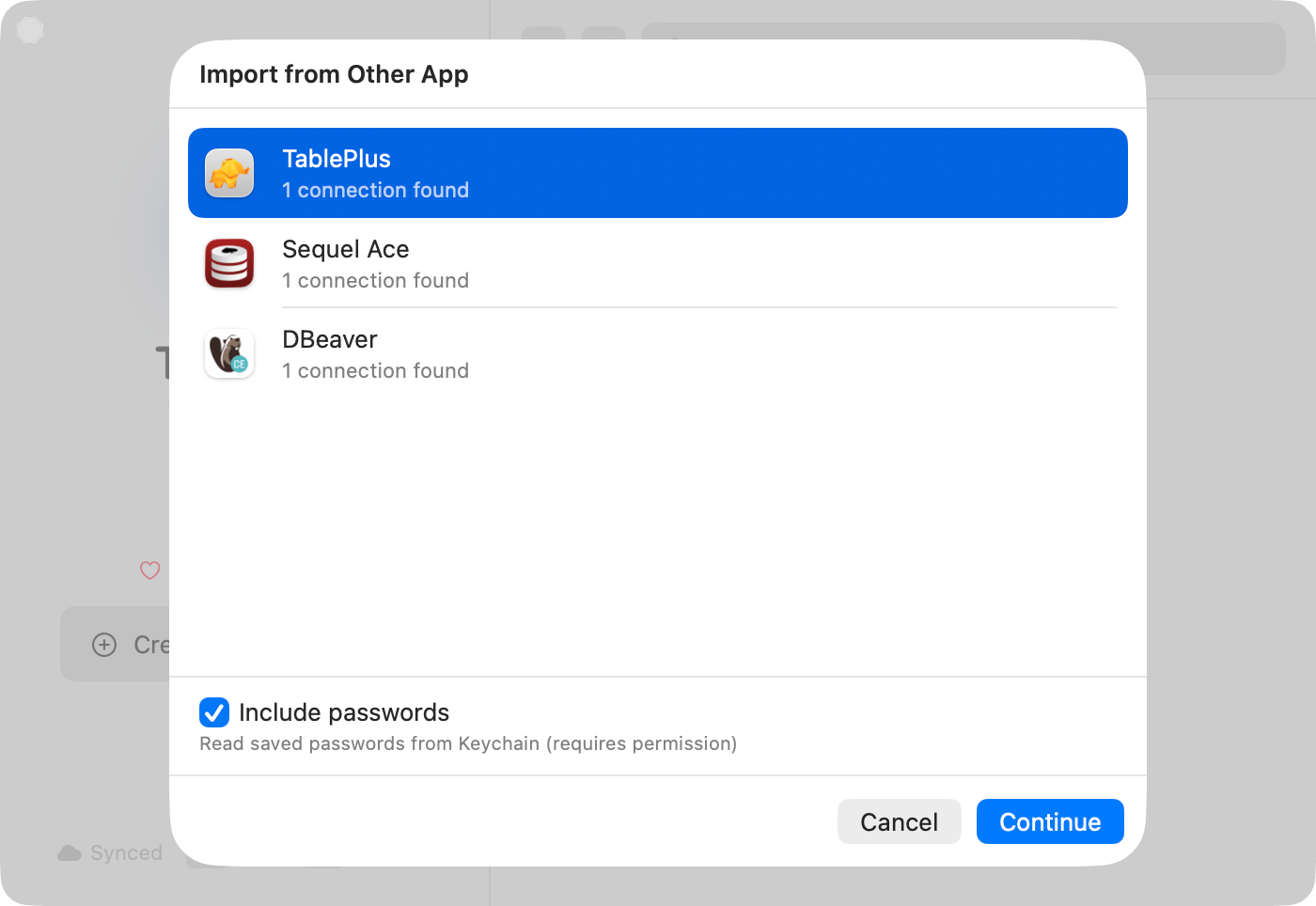
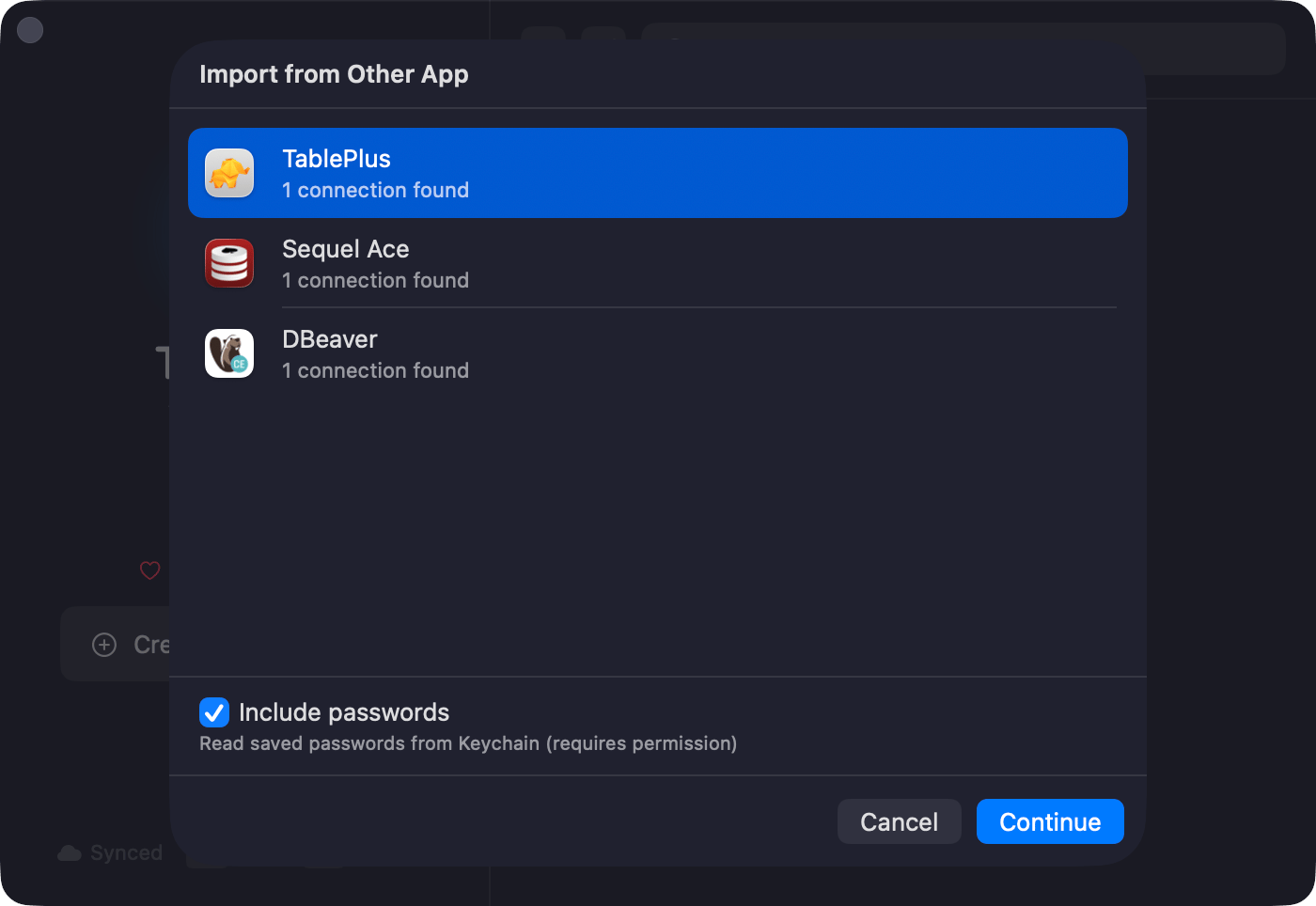
Most of a migration is one dialog. **File** > **Import from Other App...** reads the connections your current client already has, including groups and folders, and the source app does not need to be running.
This page covers the rest: what does not come across, and what to do about it.
## Import your connections
**File** > **Import from Other App...**
Navicat is the one exception: export first with **File** > **Export Connections** in Navicat, with **Export Password** turned on, then point TablePro at the `.ncx` file.
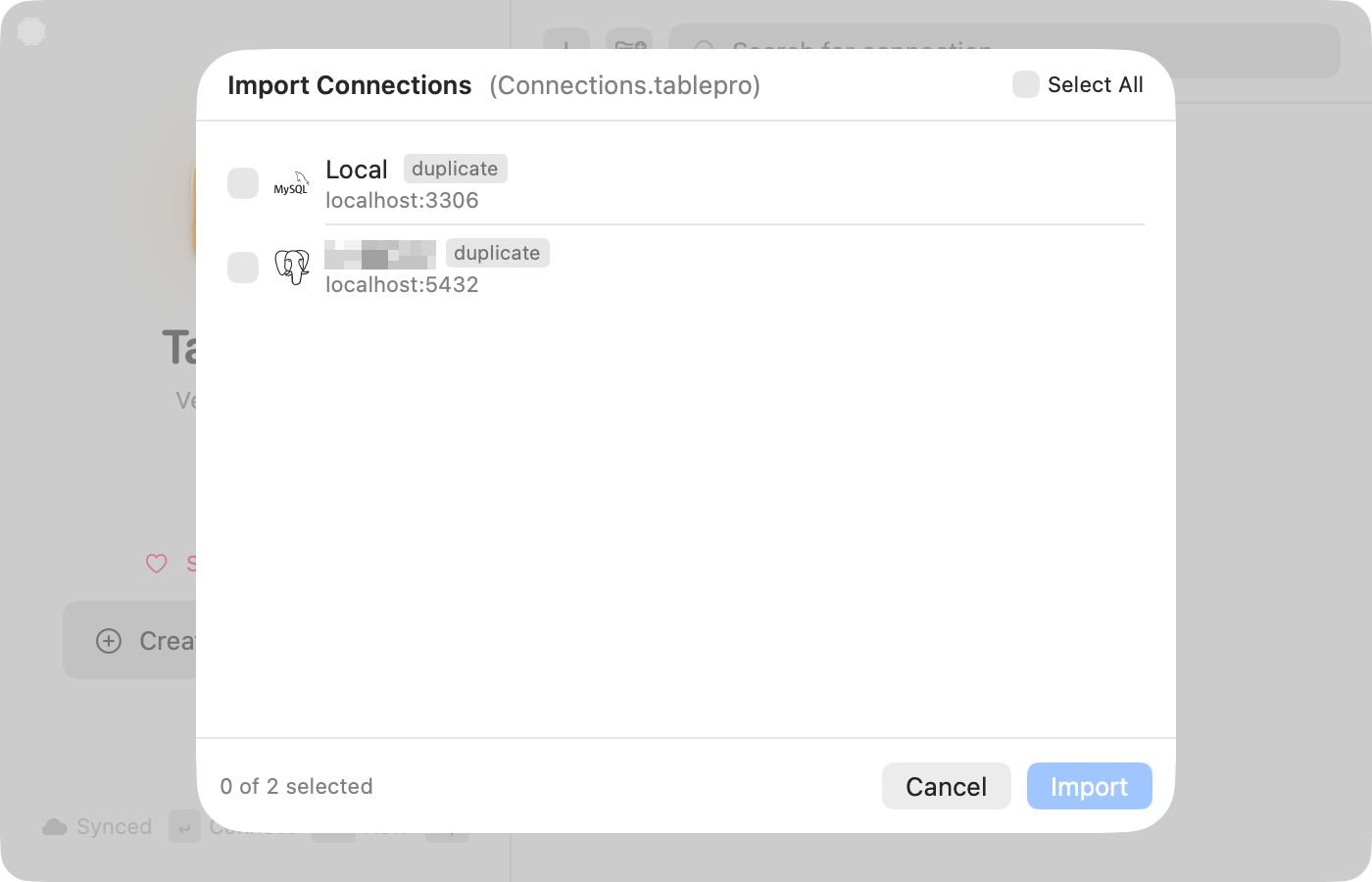
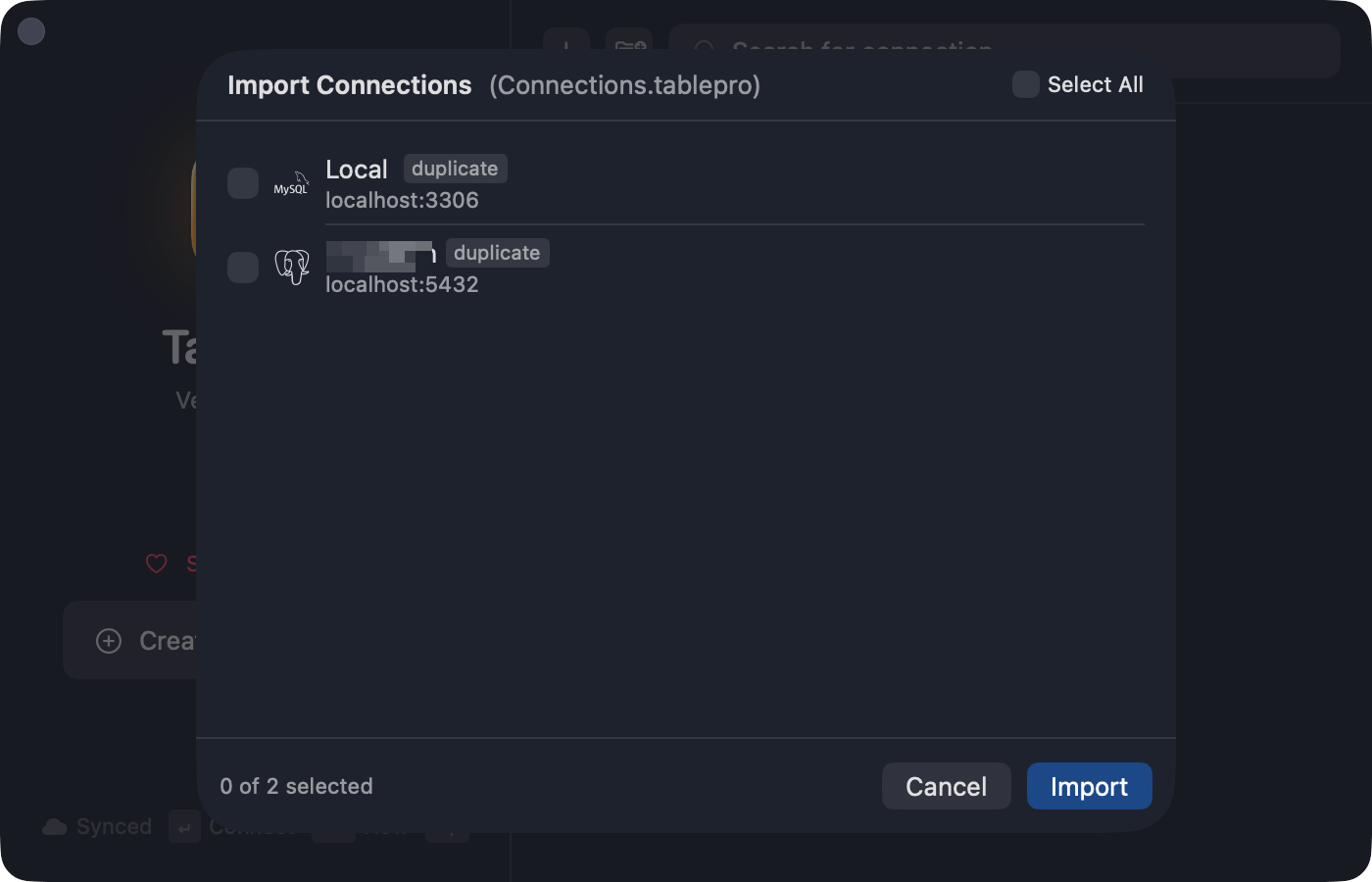
Uncheck anything you don't want, resolve duplicates, click **Import**.
 | Coming from | Databases | Passwords |
| ---------------- | --------------------------------------------------------------- | --------------------------------- |
| TablePlus | MySQL, PostgreSQL, MongoDB, SQLite, Redis, and more | From Keychain |
| Sequel Ace | MySQL | From Keychain |
| DBeaver | MySQL, PostgreSQL, SQLite, SQL Server, Oracle, and more | Decrypted from config file |
| DataGrip | MySQL, PostgreSQL, SQLite, SQL Server, Oracle, and more | From Keychain or `c.kdbx` |
| Beekeeper Studio | MySQL, PostgreSQL, SQLite, SQL Server, Oracle, and more | Decrypted from its `app.db` store |
| Navicat | MySQL, MariaDB, PostgreSQL, SQLite, SQL Server, Oracle, MongoDB | Decrypted from `.ncx` file |
SSH tunnel and SSL settings come across with the connection. See [Connection Sharing](/features/connection-sharing) for the full detail on each source.
## About passwords
This is the part of any migration that goes wrong, so it is worth knowing which case you are in before you start.
**Passwords in a file.** DBeaver, Beekeeper Studio and Navicat keep credentials in their own encrypted store. TablePro decrypts it and the import runs start to finish with nothing to click.
**Passwords in the macOS Keychain.** TablePlus, Sequel Ace and DataGrip store each password as a separate Keychain item, and macOS asks permission per item. On a large connection list that is a lot of prompts. Choose **Always Allow** rather than **Allow** and the run finishes without asking again.
A DataGrip project protected by a master password cannot be read at all. Import those connections and set their passwords in TablePro.
## What does not come across
Be aware of these before you delete the old app.
| Not imported | What to do |
| ----------------------------------------------- | -------------------------------------------------------------------------------------------------------------------------------------------------------------------------------------------------------------------------------------------------------------- |
| Saved queries and snippets | Re-save the ones you actually use as [Favorites](/features/favorites) with `Cmd+D`. To keep a whole folder of `.sql` files in sync instead, including one tracked in git, [Linked Folders](/features/connection-sharing) does that and needs a Starter license |
| Query history | Starts fresh. TablePro records history per connection from the first query you run, searchable with `Cmd+Y` |
| Column widths, sort order and per-table filters | Rebuilt as you browse. TablePro saves these per table on its own |
| Keyboard shortcuts | See below |
## Getting your shortcuts back
TablePro follows macOS conventions, so a good number of chords already match whatever you were using: `Cmd+N`, `Cmd+W`, `Cmd+S`, `Cmd+O`, `Cmd+Q`, `Cmd+F`, and `Cmd+Enter` to run a query.
Where yours differ, rebind them in **Settings** > **Keyboard** (`Cmd+,`). Record the chord you are used to and TablePro warns you if something else already claims it.
| Coming from | Databases | Passwords |
| ---------------- | --------------------------------------------------------------- | --------------------------------- |
| TablePlus | MySQL, PostgreSQL, MongoDB, SQLite, Redis, and more | From Keychain |
| Sequel Ace | MySQL | From Keychain |
| DBeaver | MySQL, PostgreSQL, SQLite, SQL Server, Oracle, and more | Decrypted from config file |
| DataGrip | MySQL, PostgreSQL, SQLite, SQL Server, Oracle, and more | From Keychain or `c.kdbx` |
| Beekeeper Studio | MySQL, PostgreSQL, SQLite, SQL Server, Oracle, and more | Decrypted from its `app.db` store |
| Navicat | MySQL, MariaDB, PostgreSQL, SQLite, SQL Server, Oracle, MongoDB | Decrypted from `.ncx` file |
SSH tunnel and SSL settings come across with the connection. See [Connection Sharing](/features/connection-sharing) for the full detail on each source.
## About passwords
This is the part of any migration that goes wrong, so it is worth knowing which case you are in before you start.
**Passwords in a file.** DBeaver, Beekeeper Studio and Navicat keep credentials in their own encrypted store. TablePro decrypts it and the import runs start to finish with nothing to click.
**Passwords in the macOS Keychain.** TablePlus, Sequel Ace and DataGrip store each password as a separate Keychain item, and macOS asks permission per item. On a large connection list that is a lot of prompts. Choose **Always Allow** rather than **Allow** and the run finishes without asking again.
A DataGrip project protected by a master password cannot be read at all. Import those connections and set their passwords in TablePro.
## What does not come across
Be aware of these before you delete the old app.
| Not imported | What to do |
| ----------------------------------------------- | -------------------------------------------------------------------------------------------------------------------------------------------------------------------------------------------------------------------------------------------------------------- |
| Saved queries and snippets | Re-save the ones you actually use as [Favorites](/features/favorites) with `Cmd+D`. To keep a whole folder of `.sql` files in sync instead, including one tracked in git, [Linked Folders](/features/connection-sharing) does that and needs a Starter license |
| Query history | Starts fresh. TablePro records history per connection from the first query you run, searchable with `Cmd+Y` |
| Column widths, sort order and per-table filters | Rebuilt as you browse. TablePro saves these per table on its own |
| Keyboard shortcuts | See below |
## Getting your shortcuts back
TablePro follows macOS conventions, so a good number of chords already match whatever you were using: `Cmd+N`, `Cmd+W`, `Cmd+S`, `Cmd+O`, `Cmd+Q`, `Cmd+F`, and `Cmd+Enter` to run a query.
Where yours differ, rebind them in **Settings** > **Keyboard** (`Cmd+,`). Record the chord you are used to and TablePro warns you if something else already claims it.

 These are the ones worth setting up on your first day, because they are the jobs you do constantly:
| Job | TablePro |
| -------------------------------------------------- | ----------------- |
| Run the statement under the cursor | `Cmd+Enter` |
| Run every statement | `Cmd+Shift+Enter` |
| Jump to any table, database or saved query by name | `Cmd+Shift+O` |
| Switch database | `Cmd+K` |
| Query history | `Cmd+Y` |
| Cancel a running query | `Cmd+.` |
| Format the query | `Cmd+Shift+L` |
| Explain the query | `Cmd+Option+E` |
| Save the query as a favorite | `Cmd+D` |
A few cannot be reassigned, so it is better to learn them than to fight them: editor built-ins such as `Cmd+/` for comment, `Cmd+[` and `Cmd+]` for indent, tab selection `Cmd+1` through `Cmd+9`, text size `Cmd+=` and `Cmd+-`, and `Cmd+F` for find. The recorder tells you when you hit one.
If you use Vim bindings, turn on [Vim Mode](/features/vim-mode) in **Settings** > **Editor** and most of this section stops mattering.
The full list is in [Keyboard Shortcuts](/features/keyboard-shortcuts).
## Coming from a client TablePro cannot import
Two other routes exist.
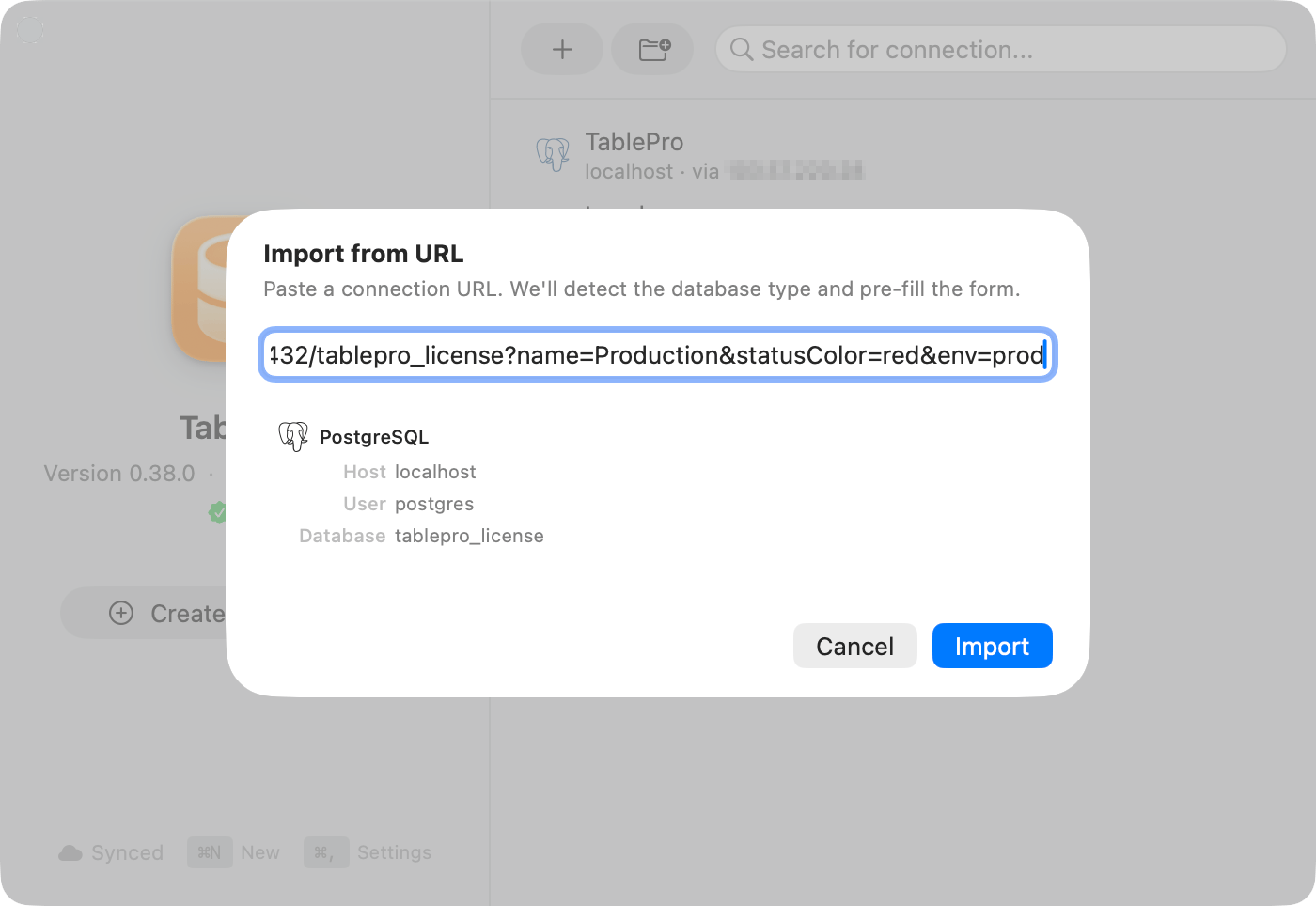
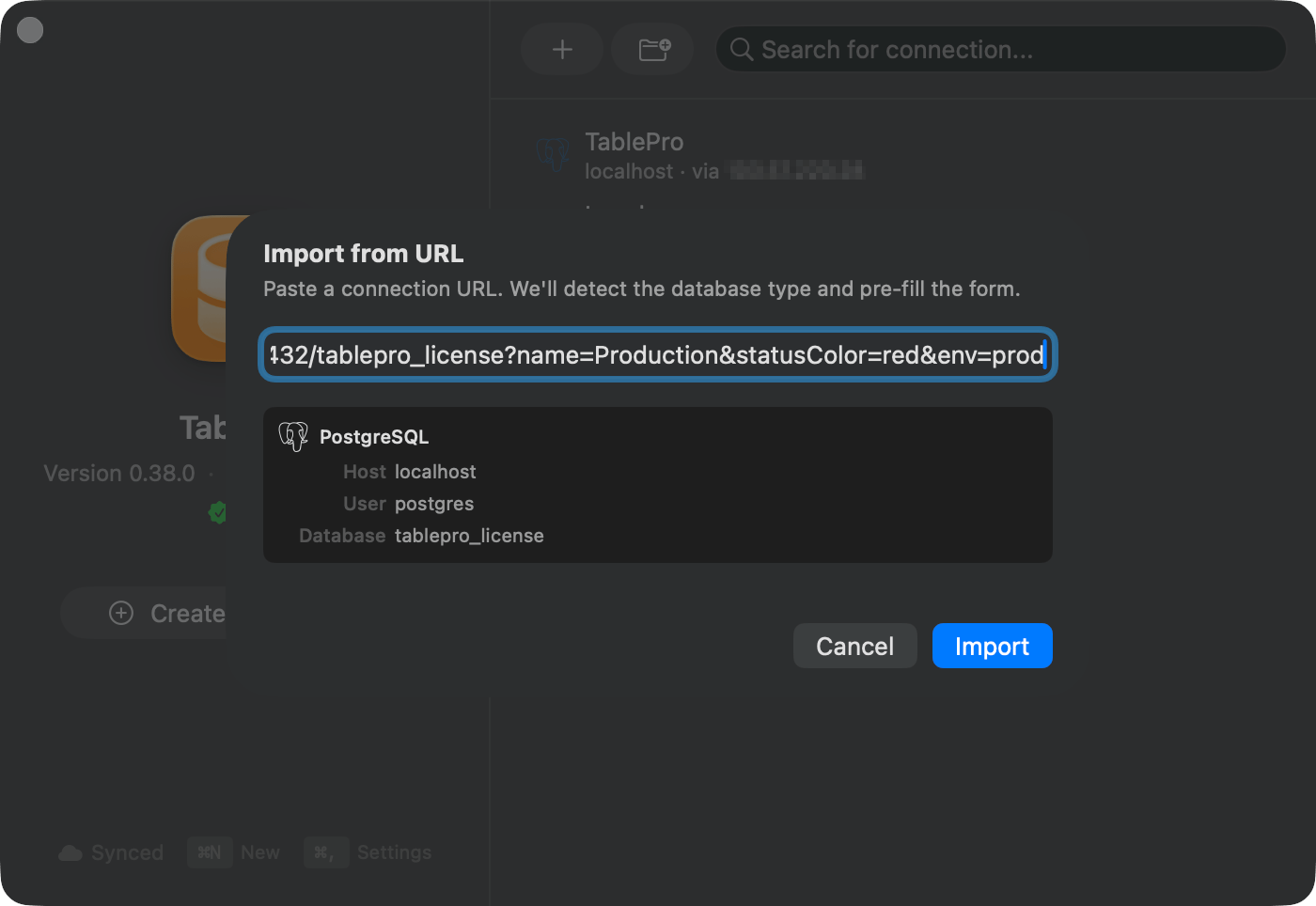
**A connection URL.** **Add from Existing** > **Import from URL** takes a `postgres://`, `mysql://` or similar URL and fills in the form. Fastest path when you only have a handful of connections.
These are the ones worth setting up on your first day, because they are the jobs you do constantly:
| Job | TablePro |
| -------------------------------------------------- | ----------------- |
| Run the statement under the cursor | `Cmd+Enter` |
| Run every statement | `Cmd+Shift+Enter` |
| Jump to any table, database or saved query by name | `Cmd+Shift+O` |
| Switch database | `Cmd+K` |
| Query history | `Cmd+Y` |
| Cancel a running query | `Cmd+.` |
| Format the query | `Cmd+Shift+L` |
| Explain the query | `Cmd+Option+E` |
| Save the query as a favorite | `Cmd+D` |
A few cannot be reassigned, so it is better to learn them than to fight them: editor built-ins such as `Cmd+/` for comment, `Cmd+[` and `Cmd+]` for indent, tab selection `Cmd+1` through `Cmd+9`, text size `Cmd+=` and `Cmd+-`, and `Cmd+F` for find. The recorder tells you when you hit one.
If you use Vim bindings, turn on [Vim Mode](/features/vim-mode) in **Settings** > **Editor** and most of this section stops mattering.
The full list is in [Keyboard Shortcuts](/features/keyboard-shortcuts).
## Coming from a client TablePro cannot import
Two other routes exist.
**A connection URL.** **Add from Existing** > **Import from URL** takes a `postgres://`, `mysql://` or similar URL and fills in the form. Fastest path when you only have a handful of connections.
 **A project folder.** [Open Project Folder](/features/project-folder-import) reads the database settings out of a project's config files, so a repository with a `.env`, `docker-compose.yml` or framework config becomes a connection without you typing a host.
## If your database is not supported yet
TablePro ships 14 drivers inside the app and installs 17 more from the plugin registry on demand, so a database missing from the connection form may still be one click away in **Settings** > **Plugins** > **Browse**.
**A project folder.** [Open Project Folder](/features/project-folder-import) reads the database settings out of a project's config files, so a repository with a `.env`, `docker-compose.yml` or framework config becomes a connection without you typing a host.
## If your database is not supported yet
TablePro ships 14 drivers inside the app and installs 17 more from the plugin registry on demand, so a database missing from the connection form may still be one click away in **Settings** > **Plugins** > **Browse**.
 If it is genuinely not there, open a request on [GitHub](https://github.com/TableProApp/TablePro/issues). Driver coverage is tracked in the open, and the [supported database list](/databases/overview) is the current answer.