
Display As formats
Right-click a column header and pick Display As. The submenu lists the formats that fit the column type, with a checkmark on the active one. MongoDB binary columns are the one exception: they never offer UUID, because the driver already decodes them under its own Legacy UUID Encoding setting.
Formats are display only: they never change the stored value. Overrides persist per column, scoped to the connection and table. A column with a format set copies in that format when you copy a single cell; copying a block of cells or a whole row always copies the stored value.
TablePro also auto-detects two cases:
BINARY(16) columns with id-like names and CHAR(32)/CHAR(36) columns named uuid or guid render as UUIDs, and integer columns named *_at, *_time, *_timestamp, created, updated, modified, or timestamp render as dates when sample values fall in a plausible range. A manual Display As choice always wins over detection, including Raw Value: picking it pins the column to its stored value instead of handing the column back to detection.
JSON viewer
- JSON-typed column: click the chevron in the cell. Double-click or
Enteredits the value inline instead. - Text column holding JSON: set Display As > JSON, then double-click or
Enter.
- Text: syntax-highlighted JSON, pretty-printed. Editable when the cell is editable.
- Tree: collapsible tree with a search field. Read-only navigation. See Filtering a tree.
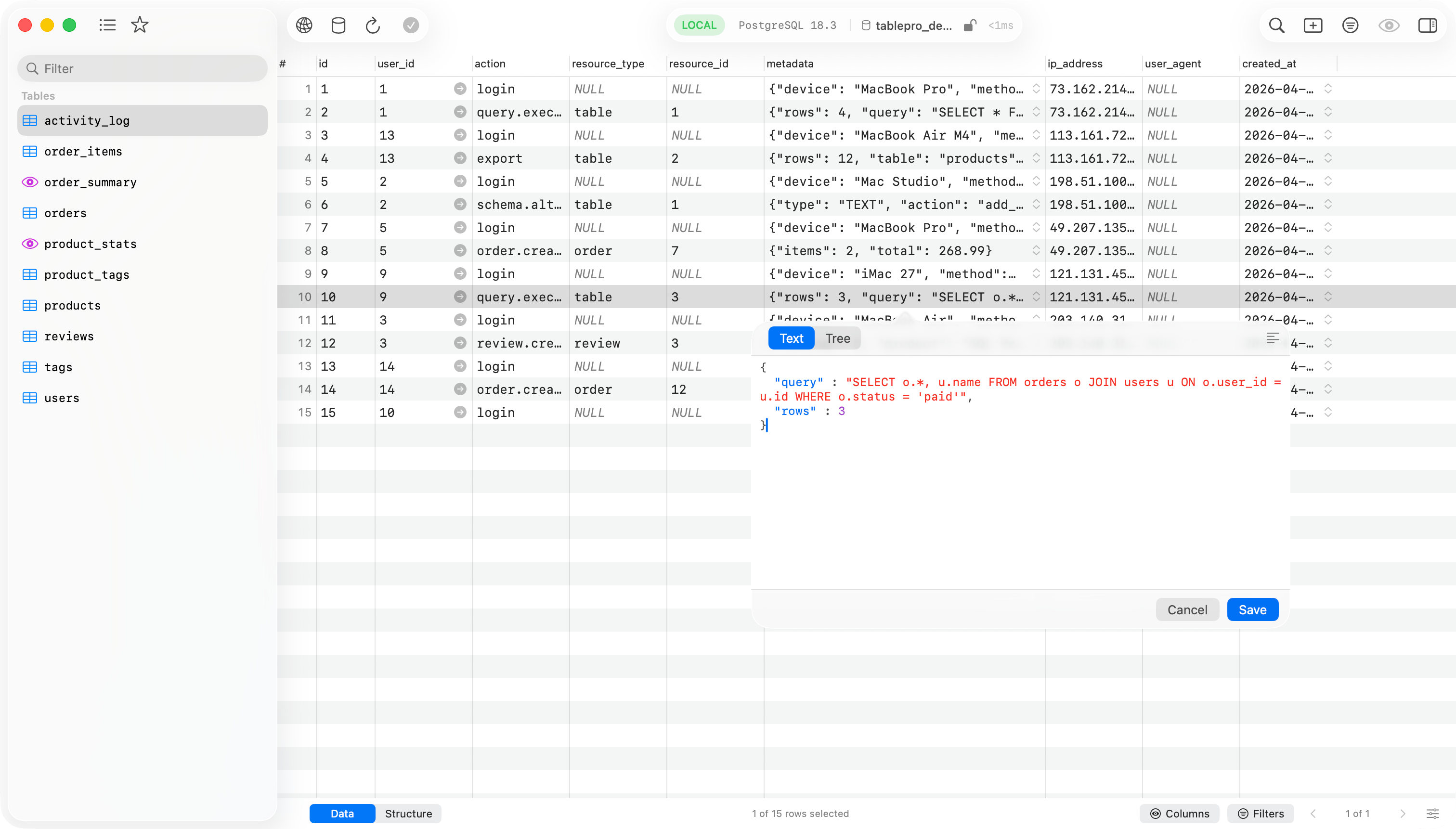
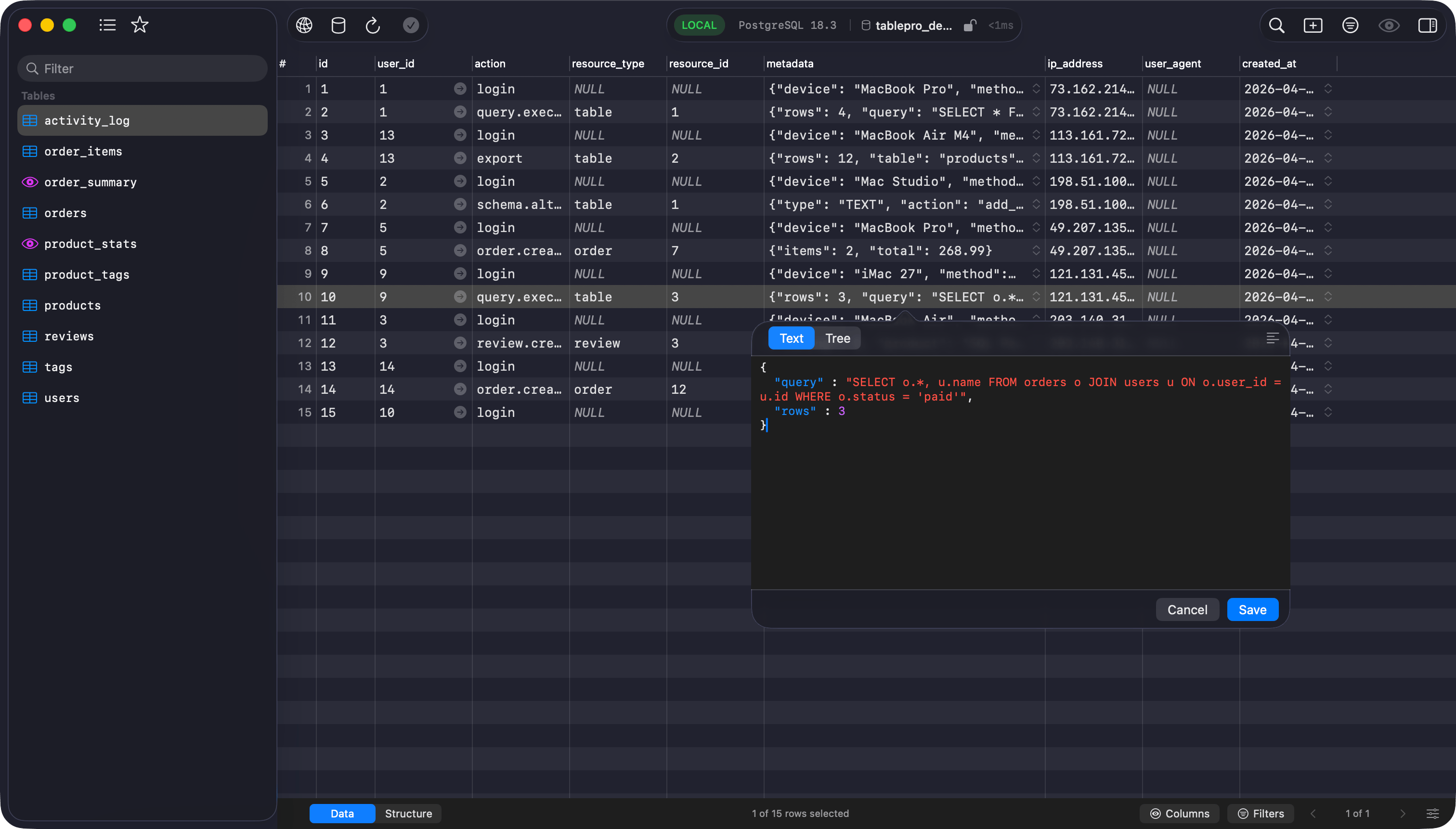
JSON editor popover with Text and Tree modes
… row; filtering then says so, because the rows past the cut were never searched.
Filtering a tree
The search field above the tree filters keys and values as you type. Both the JSON tree and the PHP serialized tree work the same way.- Matching ignores case and accents, so
cafefindscafé. It does not ignore full-width and half-width differences:ABCdoes not findABC. - A row matches on its whole value, not the shortened form shown in the row, so a match deep inside a long string still finds it.
- Matches nested under collapsed parents open on their own, so you see the match rather than the parent hiding it.
- A key that matches keeps its full contents and stays expandable, so you can search for a key and then read what is under it.
- Rows you open or close while filtering stay that way for as long as the field has text. Clearing the field restores the layout you had before you started, which is why Expand All during a filter applies to the filtered view rather than to the whole document.
- A filter that matches nothing says so. If the document was cut off at 5,000 nodes, it says that too instead of claiming the value does not contain what you typed.
Cmd+,).
Click the pop-out button in the toolbar to detach the viewer into its own resizable window. The window supports fullscreen.
Editing
Opening a value and seeing it pretty-printed is not an edit. The row is marked changed only when you alter the content, so browsing JSONB row by row stays clean. Save commits a compact value, with key order and numbers preserved, through the standard change tracking flow. If the text is not valid JSON, the viewer asks before saving.PHP serialized viewer
Set Display As > PHP Serialized on a text column, then double-click orEnter. The viewer is read-only: PHP serialized values round-trip through PHP itself, so TablePro does not write them back.
- Tree: collapsible tree with search, filtered the same way as the JSON tree. See Filtering a tree. Nodes show type badges (
str,int,arr,obj,ser,ref). Protected object members show aprotectedbadge; private members showprivate (ClassName). Custom-serialized classes (theC:token) appear as a single opaque leaf; references (r:/R:) show as→ #Nand are not followed. - Raw: the original serialized string with text selection.
Blob and hex
Blob cells render in the grid as compact hex (0x48656C..., first 64 bytes). Click the chevron or double-click to open the hex popover:
- A classic hex dump (offset, byte columns, ASCII), capped at 10 KB.
- On editable tables, an editable hex field below it. It accepts spaced or continuous hex, with or without a
0xprefix. Invalid hex disables Save; values over 10 KB open read-only.
Row details inspector
View > Toggle Inspector (Cmd+Option+I) opens the right sidebar. Select a row and every field appears with an editor matched to its content:
- JSON columns, and text values that parse as JSON, get the JSON editor. No Display As step needed.
- PHP serialized values are auto-detected the same way and get the read-only tree.
- Blob columns get the hex editor; enum, set, and boolean columns get pickers.

Row details inspector with per-field editors